Affordable Used Cars With Wireless CarPlay: What to Check
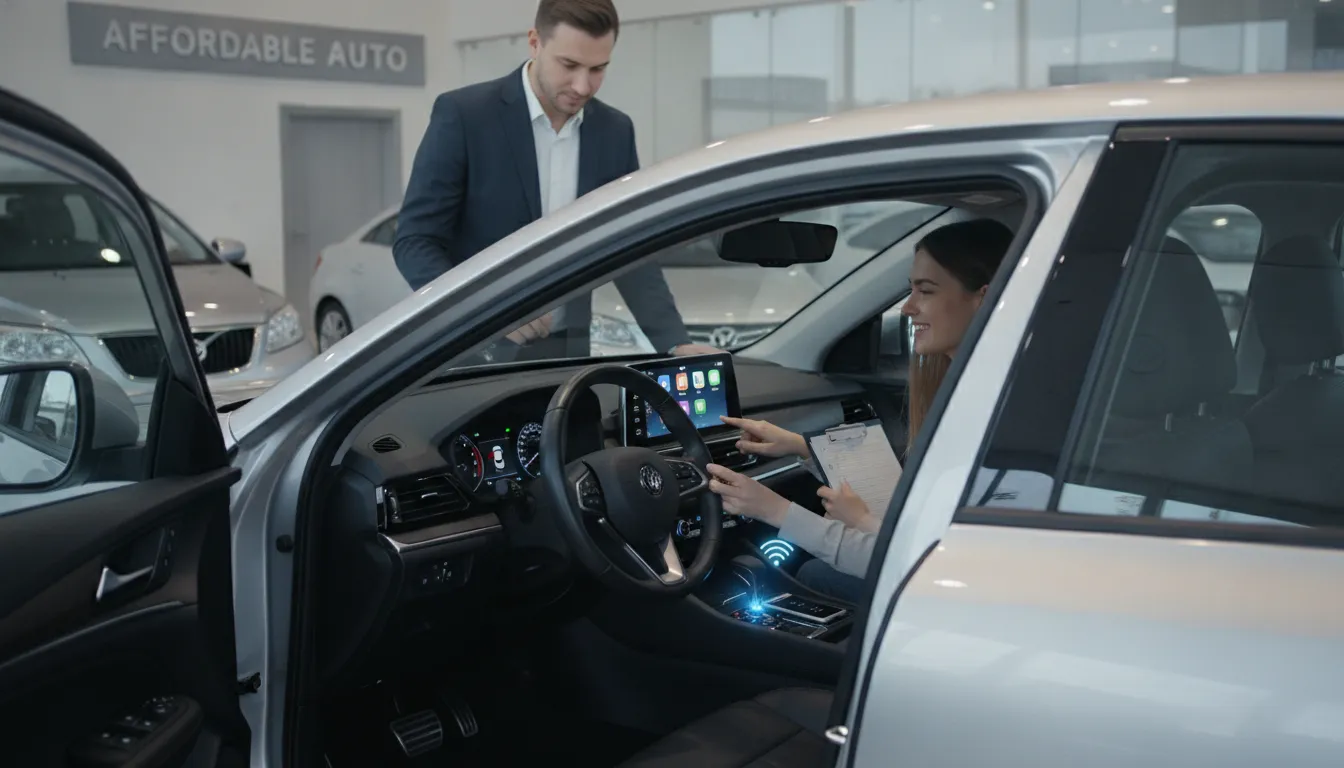
Find out how to shop for used cars with wireless CarPlay, what features to check, and how to confirm compatibility before you buy your next vehicle.
The best car purchase balances technology, condition, price, and long-term ownership costs. Wireless Apple CarPlay may sit near the top of your wish list, but it should not distract you from checking mileage, service records, safety features, and mechanical condition. Finding used cars with wireless carplay requires attention to small details because availability can change by trim, model year, screen, and package. Before you commit, learn how to tell factory wireless CarPlay apart from Bluetooth audio, wired CarPlay, and wireless charging. You’ll also discover how Automated Brokers can search multiple dealerships and help arrange financing, Maryland pickup, or delivery to your door.
Key Takeaways
- Verify the feature before purchase: Wireless Apple CarPlay depends on the exact model year, trim, infotainment system, and technology package, so confirm the VIN and test a cable-free connection.
- Judge the entire vehicle, not just its technology: Compare CarPlay performance with maintenance records, mileage, safety features, mechanical condition, financing costs, and delivery fees.
- Broaden your search for better value: Automated Brokers can compare vehicles across multiple dealerships, confirm equipment details, support financing, and arrange Maryland pickup or nationwide delivery.
What Is Wireless Apple CarPlay?
Wireless Apple CarPlay connects a compatible iPhone to a vehicle’s infotainment system without requiring a USB cable every time you drive. Once paired, the car can display supported iPhone apps on its built-in screen, giving you access to maps, music, calls, messages, and Siri through the touchscreen, steering-wheel buttons, or voice controls.
The experience depends on three pieces working together: your iPhone, the vehicle’s infotainment system, and the software connecting them. A used car may support Apple CarPlay only through a cable, while another may include both wired and wireless connections. Wireless support can also vary by model year, trim, touchscreen, or technology package.
Use Apple’s CarPlay vehicle compatibility guide as a starting point, but do not rely on the model name alone. Before buying, confirm the exact trim and equipment. For a remote purchase, request the VIN, infotainment details, photos, and a video showing the system connecting to an iPhone. That extra check can help you avoid paying more for a feature the vehicle does not actually have.
Factory Wireless vs. Wired CarPlay
Wired CarPlay uses a data-capable USB-C or Lightning cable to connect your iPhone to the vehicle’s head unit. The physical connection generally provides steady performance, charges the phone while you drive, and avoids many wireless pairing issues. It is especially useful on long trips when navigation, streaming, and screen activity may use more battery.
Factory wireless CarPlay removes the cable from your daily routine. After the first setup, your iPhone may connect automatically when you start the car, keeping the center console less cluttered. That convenience works well for short trips, errands, and commutes.
Wireless performance can vary between vehicles, though. An older or less capable infotainment processor may cause startup delays, lag, or occasional disconnects. Some systems also perform more consistently with a cable, even when wireless CarPlay is available. Review this wired and wireless CarPlay comparison before deciding which setup suits your driving habits.
How Bluetooth and Wi-Fi Connect an iPhone
Wireless CarPlay typically begins with Bluetooth. During the first setup, Bluetooth helps your iPhone and the vehicle find each other, confirm the connection, and complete authentication. Once that exchange is complete, the system usually transfers the larger amount of audio, app, and display data over Wi-Fi, often using the 5GHz band.
That combination makes wireless CarPlay different from ordinary Bluetooth audio. Bluetooth helps with discovery and initial pairing, while Wi-Fi supports the richer CarPlay interface shown on the vehicle’s screen. Your iPhone can then send map directions, music information, Siri requests, and other supported content to the infotainment system.
To pair an iPhone, turn on Bluetooth and Wi-Fi, start the vehicle, and follow the instructions on the screen. Some vehicles require a USB connection during initial setup, while others allow wireless pairing from the beginning. If the car does not reconnect, check the iPhone’s Bluetooth, Wi-Fi, Siri, and CarPlay permissions. Apple’s CarPlay setup instructions include additional pairing and troubleshooting steps.
Use Maps, Music, Calls, Messages, and Siri Wirelessly
Wireless CarPlay lets you use compatible iPhone features through the vehicle’s display and controls. You can ask Siri for directions, search Apple Maps or Google Maps, play music from Apple Music or Spotify, make calls, and hear incoming messages read aloud. You can also dictate replies without typing on the phone.
The system places familiar functions within the dashboard screen, steering-wheel buttons, or voice controls, which can help you keep your attention on driving. Set your destination before leaving when possible, keep messages brief, and use voice commands instead of reaching for your phone.
App support is limited to services designed for CarPlay. Only compatible apps appear on the vehicle’s screen, and some functions may be restricted while the car is moving. Apple explains the available CarPlay apps and features, but the exact experience can vary by iPhone model, app version, and vehicle software.
Compare Wireless CarPlay, Bluetooth Audio, and Wireless Charging
Bluetooth audio can stream music and handle phone calls, but it usually does not provide the complete CarPlay interface. You may not have dashboard access to navigation apps, message dictation, Siri controls, or the same touchscreen integration. Bluetooth works well for basic audio, but it is not a substitute for wireless CarPlay.
Wireless charging serves a separate purpose. A charging pad transfers power to a compatible phone without a cable, but it does not create a connection with the infotainment system. A vehicle may have wireless charging without wireless CarPlay, wireless CarPlay without a charging pad, or both features together.
Factory wireless CarPlay is convenient because your phone can stay in your pocket or rest on a charging pad. However, it may use more power than basic Bluetooth because the iPhone maintains a Wi-Fi connection and sends additional display data. Wired CarPlay remains useful when you need continuous charging or a more dependable connection. This wired and wireless CarPlay comparison explains the main differences in power use and reliability.
Understand Battery Use, Mobile Data, App Support, and Common Myths
Wireless CarPlay can use a noticeable amount of battery during longer drives. Navigation, streaming, screen activity, and the wireless connection all require power. A built-in charging pad may help, but charging speed varies by vehicle and phone. Keep a reliable USB cable in the car so you can switch to wired CarPlay when needed.
CarPlay does not include its own mobile data plan. Your iPhone generally uses its cellular connection for live maps, streaming, traffic updates, and other online services. Data use depends on the apps you use and whether you download content for offline access. A weak cellular signal can affect online features even when the CarPlay connection remains active.
Wireless compatibility also does not guarantee flawless performance. Outdated software or limited infotainment hardware can cause slow startup, lag, reboots, or dropped connections. Standard CarPlay does not support every iPhone app or unrestricted video playback. If a used car offers both connection types, test wired and wireless CarPlay before buying instead of assuming one will always perform better.
Which Used Cars Offer Factory Wireless CarPlay?
Factory wireless CarPlay is available in a growing selection of used cars, but the feature depends on more than the model name. The model year, trim, infotainment screen, technology package, and regional equipment can all affect whether an iPhone connects without a USB cable.
Use the vehicles below as starting points, not guarantees. Before comparing prices, ask for the VIN, window sticker, build sheet, or owner’s manual. A seller should also be able to demonstrate the system with a compatible iPhone. Apple’s official list of CarPlay-compatible vehicles can help confirm whether a model has supported the feature, but it may not identify every trim-level difference.
If you are shopping remotely, Automated Brokers can search across multiple dealerships based on your preferred make, model, budget, and technology requirements. You can also view available inventory and request details before deciding which vehicle deserves a closer look.
Model-Year Examples: 2020+ Acura RDX and 2021+ Honda Accord
The Acura RDX and Honda Accord are useful starting points for shoppers who want a comfortable used vehicle with modern infotainment. However, wireless CarPlay availability may vary within the suggested model-year ranges. Some vehicles may include wired CarPlay only, while others have a newer multimedia system with wireless connectivity.
For the Acura RDX, verify the model year, trim, technology package, and screen configuration. When comparing the Honda Accord, check whether the vehicle is an LX, Sport, EX-L, Touring, or another trim, since equipment can differ between versions. Do not assume that a larger screen automatically means wireless CarPlay.
Ask the seller to connect an iPhone without a cable and show the CarPlay interface on the factory screen. This quick demonstration provides stronger evidence than a listing that only says “Apple CarPlay.” You can also compare these examples with other cars that offer wireless Apple CarPlay as you expand your search.
Value Sedans: Kia K5 and Hyundai Sonata
The Kia K5 and Hyundai Sonata offer a practical mix of passenger space, comfortable interiors, fuel economy, and useful technology. Certain newer model years and trims include wireless Apple CarPlay, which makes these sedans worth considering if you want a connected daily driver without paying for a luxury badge.
Pay close attention to the infotainment screen and multimedia system. Wireless CarPlay may be tied to a specific display, package, or trim, while a similar-looking vehicle may support only wired CarPlay. A listing that says “Apple CarPlay” does not explain how the phone connects.
Request a photo of the screen and ask whether the seller uses a USB cable, Bluetooth pairing, or a wireless connection. If CarPlay starts only after the phone is plugged in, the car has wired CarPlay. That feature can still work well, but it should not be valued the same way as factory wireless connectivity.
Crossovers to Consider: Toyota Venza, Mazda CX-5, Hyundai Tucson, Kia Sportage, and Toyota RAV4
The Toyota Venza, Mazda CX-5, Hyundai Tucson, Kia Sportage, and Toyota RAV4 give used-car shoppers a broad range of sizes, prices, powertrains, and cargo capacity. Newer examples may include factory wireless CarPlay, but availability can vary by year, trim, screen, and market.
A large touchscreen is not proof of wireless connectivity. Some vehicles use a sizable display but require a cable for CarPlay, while a different trim or newer multimedia system connects wirelessly. Hybrid and all-wheel-drive versions may also have different equipment from other configurations, so check the exact vehicle rather than relying on a general model description.
Automated Brokers can compare crossover options across its network of more than 1,300 vehicles at nine dealerships. Share your preferred mileage, budget, drivetrain, and technology requirements through the How It Works page so the search focuses on vehicles that fit your needs.
Trucks and SUVs: Ford F-150, Chevrolet Silverado, Kia Telluride, Toyota Grand Highlander, and Jeep Wagoneer
The Ford F-150, Chevrolet Silverado, Kia Telluride, Toyota Grand Highlander, and Jeep Wagoneer are worth considering if you need towing capability, passenger space, or a larger cargo area. Newer versions of these trucks and SUVs may offer factory wireless CarPlay, especially when equipped with an upgraded infotainment system.
Equipment can differ significantly between trims. A base F-150 or Silverado may use a different screen from a higher trim, and the Telluride, Grand Highlander, and Wagoneer each offer multiple configurations. The Grand Highlander is also newer than many competing SUVs, so used examples may have fewer available model years and higher asking prices.
For a remote purchase, request a short video showing the iPhone connecting without a USB cable. Ask the seller to open Maps, play audio, place a call, and use the steering-wheel controls. You can contact Automated Brokers with your preferred truck or SUV, budget, and wireless CarPlay requirements.
Check the Year, Trim, Screen, Package, and Market
Before paying more for wireless CarPlay, confirm these five details:
- Model year: A redesign or infotainment update can change the available technology.
- Trim: Higher trims may include wireless connectivity that is unavailable on base models.
- Screen: Different displays can use different software, ports, and connection methods.
- Package: A technology, convenience, or premium package may be required.
- Market: US, Canadian, and other regional versions may have different equipment.
Ask for the VIN, window sticker, build sheet, and a photo of the infotainment system. If possible, test the vehicle with a compatible iPhone and confirm that CarPlay starts without a cable. Check Maps, music, calls, Messages, Siri, the backup camera, and steering-wheel controls.
Also make sure you are not confusing wireless CarPlay with Bluetooth audio or wireless phone charging. Bluetooth may handle calls and music without displaying CarPlay apps, while wireless charging only supplies power. Confirming the connection method before purchase helps you compare vehicles accurately and avoid paying extra for a feature the car does not have.
Which Wireless CarPlay Features Deserve Your Money?
Wireless Apple CarPlay can make a used car easier to live with, but the feature does not work equally well in every vehicle. One system may connect within seconds and run smoothly, while another may lag, disconnect, or require repeated pairing. When comparing affordable used cars, treat CarPlay as one part of the infotainment system, not the main reason to choose a specific vehicle.
The best setup connects shortly after you start the car, stays connected during a normal drive, and lets you use familiar phone features without handling your iPhone. CarPlay supports directions, music, calls, messages, and Siri through the factory screen, as Business Insider’s CarPlay guide explains. Before paying more for a particular trim, test these everyday functions and compare them with the vehicle’s condition, mileage, service history, and total price.
Prioritize Automatic Pairing, Fast Startup, and Reliable Reconnection
The main reason to choose wireless CarPlay is convenience. After the initial setup, your iPhone should connect automatically when you start the vehicle. You should not need to plug in a cable or repeat the pairing process every time you get behind the wheel. Look for a system that starts within a few moments, reconnects after you leave and return to the car, and remains connected during regular driving.
During a test drive, turn the vehicle off, take your phone with you, and restart the car. Check whether CarPlay reconnects without extra steps. Then make a call, play audio, and use a map for several minutes. A system that needs repeated manual pairing may become frustrating quickly. Wireless CarPlay depends on both Bluetooth and Wi-Fi, so Beat-Sonic’s comparison of wired and wireless CarPlay can help you weigh convenience against connection reliability.
Access Navigation, Music, Calls, Messages, and Siri Through the Factory Screen
A useful CarPlay system should handle the tasks you perform most often without requiring you to reach for your phone. Test Apple Maps, Google Maps, or Waze, then play music or a podcast and adjust the volume using the vehicle’s controls. Ask Siri to send a message, call a contact, or provide directions. The system should move between these functions without long loading times or confusing menus.
Pay attention to whether directions remain visible while audio plays and whether incoming calls interrupt the system smoothly. Siri should understand normal speech through the built-in microphone, even with road noise or the climate control running. If you rely on a particular music, messaging, or map app, check that it works with CarPlay before buying. App availability and supported functions can vary, so review Apple’s official CarPlay information before making assumptions about a used vehicle’s capabilities.
Evaluate the Touchscreen, Controls, Steering-Wheel Buttons, and Microphone
Wireless CarPlay cannot correct a poorly designed or aging infotainment system. A responsive touchscreen, clear menus, and physical volume controls may matter more than having the newest software. Tap several icons, scroll through a map, adjust the audio, and return to the vehicle’s native menu. Watch for delayed responses, frozen screens, dim areas, or a display that requires repeated taps.
Test the steering-wheel buttons, too. Volume, track selection, voice commands, and call controls should work without forcing you to look away from the road. Make a hands-free call and ask the other person whether your voice sounds clear. Some infotainment systems have limited processing power, which can make wireless CarPlay less responsive than a wired connection, according to AppleInsider’s CarPlay comparison. If the screen lags during a short test, expect that issue to affect daily use.
Look for Wireless Charging, Usable USB Ports, and Wired CarPlay Backup
Wireless charging pairs naturally with wireless CarPlay, but it should not be a deciding factor by itself. If the vehicle includes a charging pad, check whether it fits your phone securely and charges consistently. Some pads run warm or struggle to charge through a thick case. Place your phone on the pad during a test drive and check its battery level afterward.
Inspect every USB port as well. At least one data-capable port should support wired CarPlay, phone charging, or both. A wired backup is helpful when wireless connections fail, when you need to preserve battery, or when you want a steady connection on a long trip. Wired CarPlay generally provides consistent performance and continuous charging, as Beat-Sonic’s wired and wireless analysis notes. Test each port with your own cable instead of assuming every USB socket serves the same purpose.
Check Phone Switching, Software Updates, Cellular Data, and App Limits
If more than one person drives the vehicle, test how easily the system switches between phones. Pair a second device if possible, then check whether the car connects to the intended phone or defaults to the first one every time. A simple phone-priority setting can prevent repeated pairing problems in households with multiple drivers.
Ask whether the infotainment software is current and whether updates require a dealer visit, a USB drive, or an over-the-air download. Wireless CarPlay still uses your iPhone’s cellular data for online maps, streaming, and many voice requests, so weak reception can affect those services. It also does not make every iPhone app appear on the vehicle screen. Review the manufacturer’s specifications and Pocket-lint’s overview of wireless CarPlay requirements before assuming a vehicle supports every app you use. When comparing cars through Automated Brokers, request the exact trim and infotainment details instead of relying on the model name alone.
What Does a Used Car Need for Wireless CarPlay?
A used car needs more than a touchscreen to run Apple CarPlay without a cable. Wireless CarPlay depends on several parts working together: the vehicle’s infotainment system, Bluetooth and Wi-Fi hardware, current software, and a compatible iPhone. If any one of these is missing, you may need to connect with a USB cable or install a wireless adapter.
The exact model year and trim matter. A base trim may offer Bluetooth and wired CarPlay, while a higher trim of the same vehicle includes factory wireless CarPlay. Equipment can also differ between markets, option packages, and screen types. That is why a listing that says “Apple CarPlay” does not necessarily mean “wireless Apple CarPlay.”
Before paying more for a vehicle with this feature, ask for specific proof. Request the VIN, window sticker, build sheet, infotainment details, and a video showing the system connecting to an iPhone without a cable. If you are shopping remotely, Automated Brokers can help compare technology features across its available inventory and confirm details before you make a purchase.
A short test drive can reveal issues that a listing will not mention. Check how quickly CarPlay starts, whether the connection remains stable, and whether the touchscreen, steering-wheel controls, microphone, and backup camera work as expected. If wireless CarPlay is not available, find out whether the car supports wired CarPlay and whether a compatible adapter could provide a practical alternative.
Use a Compatible iPhone and Supported iOS Version
Your iPhone must support wireless CarPlay, and it should run iOS 13 or later. Apple recommends using the newest iOS version your phone supports. Bluetooth and Wi-Fi must be turned on during setup because wireless CarPlay uses both connections to communicate with the vehicle.
Before testing a used car, update your iPhone and check that Siri is enabled. Restarting the phone can also clear a temporary connection problem. An older iPhone or outdated software may make wireless CarPlay appear unavailable even when the vehicle has the right equipment. You can review additional compatibility information in this wireless CarPlay comparison.
Confirm Built-In Bluetooth and Wi-Fi Hardware
Wireless CarPlay requires Bluetooth and Wi-Fi hardware in the vehicle’s infotainment system. Bluetooth typically helps establish the initial connection, while Wi-Fi handles the ongoing, higher-bandwidth communication between the iPhone and the car.
Do not assume that a vehicle supports wireless CarPlay simply because it has Bluetooth, wireless charging, or a large display. Some lower trims include Bluetooth and wired CarPlay but do not include the Wi-Fi hardware needed for a cable-free connection.
Check the exact model year and trim rather than relying on the model name alone. Imported vehicles and cars originally sold in another market may have different equipment. Model-specific research can point you in the right direction, but the VIN, build sheet, and an in-person connection test offer stronger confirmation.
Verify the Infotainment System Supports Wireless CarPlay
The infotainment system must support wireless CarPlay from the factory, or it must work with a compatible wireless adapter. A USB port does not prove that wireless connectivity is available. Some systems support only wired CarPlay, while others offer wireless CarPlay only with a specific screen, package, or trim.
The system’s performance matters, too. An older processor can cause delayed menus, slow startup, laggy touch controls, or dropped connections. Ask the seller or broker for the exact infotainment version, then test it with your iPhone instead of relying only on a general vehicle listing.
A wired connection may feel faster and more consistent on some systems, even when wireless CarPlay is available. This comparison of wired and wireless CarPlay explains the tradeoffs, including connection reliability, audio performance, and charging.
Update Software and Enable Required Settings and Permissions
Before pairing, turn on the car and make sure Siri, Bluetooth, and Wi-Fi are enabled on your iPhone. Your phone may also ask for permission to use CarPlay while the vehicle is locked. Accept the relevant prompts during setup, since declining one can prevent automatic connections later.
Check the vehicle’s infotainment system for available software updates. Updates may address connection failures, improve startup behavior, or correct compatibility problems. If the car has been sitting on a lot, its software may not be current.
If CarPlay still will not connect, remove the vehicle from your iPhone’s CarPlay settings and delete the phone from the car’s device list. Then pair the devices again. Apple’s CarPlay connection guidance includes additional steps for pairing, permissions, and troubleshooting.
Use a Data-Capable USB Port for Wired CarPlay or an Adapter
A used car with wired CarPlay needs a USB port that transfers data, not one that only supplies power. Test the port with a known-good cable and your iPhone. If the phone charges but CarPlay does not open, the cable may be damaged, the port may be power-only, or the vehicle may support CarPlay through a different USB port.
Wired CarPlay is a useful backup because it provides a stable connection and charges the phone at the same time. It may also deliver more consistent audio performance. Keep a suitable cable in the car, even if you prefer wireless connectivity.
If the vehicle has wired CarPlay but not factory wireless CarPlay, a wireless adapter may be an option. Most adapters require working wired CarPlay first, so confirm the head unit’s compatibility before buying. An adapter can be less expensive than replacing the infotainment system, but it may introduce startup delays, audio lag, or occasional disconnections.
Check Regional Specifications and Multi-Phone Support
Wireless CarPlay can vary by market, even when two vehicles share the same model name and exterior design. Imported vehicles, fleet models, and cars originally sold in another country may have different infotainment hardware or software. Confirm the model year, trim, screen, option package, and original market before assuming the feature is included.
Multi-phone support deserves attention if you share the vehicle with a partner or family member. Some systems remember several devices but automatically connect to only one. Others require you to select a phone manually or change the connection priority in the settings menu.
During a test, pair more than one phone if possible. Check how quickly the system switches between devices and whether it reconnects to the correct phone after the vehicle is turned off and on. For a remote purchase, request written confirmation, the VIN, and a short demonstration video through Automated Brokers’ concierge buying process. Then compare those details with the manufacturer’s specifications for that exact vehicle.
How Can You Verify Wireless CarPlay?
Wireless CarPlay can vary by model year, trim, infotainment system, and market. A vehicle may share a model name with another car but use a different screen, software package, or technology option. For that reason, verify the exact vehicle instead of relying on a general list of compatible models.
Before you buy, review the vehicle records and test the system whenever possible. If you are purchasing remotely, ask the seller or broker for written confirmation, photos, and a short video showing a cable-free connection. These steps can help you avoid receiving a car that has Bluetooth or wired CarPlay but not the wireless feature you expected.
Check the VIN, Window Sticker, Build Sheet, Manual, and Manufacturer Specs
Start with the vehicle identification number, or VIN. Ask for the original window sticker, build sheet, owner’s manual, and factory equipment list. These documents may identify the infotainment system, technology package, and trim-specific features installed on that particular vehicle.
Search the manual for terms such as “Apple CarPlay,” “wireless Apple CarPlay,” and “smartphone integration.” Be cautious with broad phrases such as “smartphone connectivity,” since they may refer only to wired CarPlay or Bluetooth audio.
Compare the equipment with the manufacturer’s specifications for the exact model year. Apple’s CarPlay vehicle compatibility information can help, but it should not replace confirmation of the specific trim and package. Features can differ between markets and option groups.
Review Manufacturer Resources, Owner Forums, and Seller or Broker Records
Manufacturer websites, owner manuals, technical bulletins, and dealership records are useful starting points. Look for instructions that describe wireless pairing, rather than instructions that only tell you to connect an iPhone to a USB port. If the manual mentions only wired CarPlay, ask whether a software update or separate technology package is required.
Owner forums can reveal differences between model years and trims, as well as common problems such as slow startup or dropped connections. Use these discussions as supporting information, not final proof, since owners may have vehicles built for different markets.
Ask the seller or broker to confirm the VIN, mileage, trim, equipment, and infotainment details. Automated Brokers helps shoppers compare vehicles and communicate by phone, text, or email through its concierge buying process.
Confirm the Exact Trim and Screen, Not Just the Model
A model name does not confirm wireless CarPlay. Automakers may reserve the feature for higher trims, technology packages, or certain model years. Two vehicles with the same badge can have different screens, USB systems, and smartphone features.
Ask for the exact model year, trim, drivetrain, package names, and screen size. Request a clear photo of the powered-on infotainment screen, along with photos of the USB ports and center console. Compare those details with the manufacturer’s specifications for that configuration.
A CarPlay icon on the screen is helpful, but it does not prove wireless compatibility. Some systems display the icon but require a USB cable. The seller should show the phone connecting without a cable before you treat the feature as confirmed.
Pair a Compatible iPhone During a Cable-Free Demonstration
A live demonstration provides one of the clearest ways to verify wireless CarPlay. Ask the seller to start the vehicle, turn on Bluetooth and Wi-Fi on the iPhone, and select the vehicle in the CarPlay settings. Siri also needs to be enabled. Apple explains the required permissions in its wireless CarPlay setup instructions.
The iPhone should connect to the factory screen without a USB cable or aftermarket adapter. Ask the seller to remove the phone from any charging pad during the test, since wireless charging does not prove that wireless CarPlay is available.
If the connection fails, ask whether the phone has been paired with the vehicle before. Old pairings can cause problems. A fresh demonstration with a compatible iPhone gives you a more dependable answer than a seller pointing to a CarPlay icon.
Test Maps, Audio, Calls, Siri, Messages, Controls, and the Backup Camera
After the connection starts, test the features you expect to use most. Open Apple Maps or another supported navigation app, play music, make a hands-free call, ask Siri a question, and check whether messages can be read and answered through voice controls.
Test the touchscreen, steering-wheel buttons, voice button, volume controls, and physical knobs. Make sure the microphone picks up your voice and that audio plays clearly through the vehicle’s speakers. If the car has a backup camera, shift into reverse to confirm that its image still appears correctly.
CarPlay features can vary according to iPhone settings and app support. Apple’s CarPlay user guide explains how navigation, calls, messages, music, Siri, and other controls work together. Testing each function can reveal problems with the entire infotainment system, not just the wireless connection.
Check Startup, Connection Stability, Phone Switching, and Drive Performance
Watch what happens when the vehicle starts. Wireless CarPlay should connect within a reasonable amount of time without repeated manual steps. A brief delay may be normal, but repeated failures, frozen screens, or multiple reconnection attempts deserve further investigation.
If more than one person will drive the car, test phone switching. Pair a second compatible iPhone and check whether the system identifies the correct device. Some systems connect to one phone automatically, while others let you choose from several paired devices.
During a short drive, test navigation prompts, audio, calls, and steering-wheel controls. Watch for dropped connections or screen reboots while using several functions. Ask whether the infotainment software is current, since outdated software can affect connection reliability.
Distinguish Wireless CarPlay From Bluetooth and Wireless Charging
Bluetooth audio is not the same as wireless CarPlay. Bluetooth may support music streaming and hands-free calls, but it generally does not provide the full CarPlay interface, including navigation apps, message controls, Siri, and the familiar app dashboard.
Wireless CarPlay normally uses Bluetooth to begin pairing and Wi-Fi to transmit the larger amount of data needed for the vehicle’s screen. As a result, a phone may connect for calls while still failing to launch CarPlay. Test the full interface instead of treating any wireless phone connection as proof.
Wireless charging is separate, too. A charging pad can power your phone while the vehicle uses wired CarPlay, Bluetooth, or wireless CarPlay. Ask the seller to demonstrate each feature independently so you know exactly what the vehicle includes.
Request Photos, Video, and Written Confirmation for Remote Purchases
For a remote purchase, request more than a listing screenshot. Ask for the VIN, window sticker, infotainment screen, USB ports, and center console. Request a short video showing the vehicle starting, the iPhone pairing without a cable, and at least one navigation or audio function working.
Ask for written confirmation that the exact vehicle includes factory wireless Apple CarPlay. Include the model year, trim, VIN, and technology package in your message. Keep the response with the listing, purchase paperwork, and delivery records.
Automated Brokers can help verify details before you commit to a nationwide purchase. Its vehicle search service covers more than 1,300 vehicles across nine dealerships. You can request photos, video, pricing, financing information, and delivery details while comparing vehicles by make, model, trim, budget, and technology features.
How Can You Find Affordable Used Cars With Wireless CarPlay?
Finding an affordable used car with wireless CarPlay takes more than searching for a model name and the phrase “wireless Apple CarPlay.” The feature may depend on the exact model year, trim, infotainment screen, or technology package. Start by setting a total budget, then decide which vehicle types, safety features, seating needs, and technology options matter most.
Remember that a lower purchase price does not always mean a lower ownership cost. Taxes, fees, financing, insurance, fuel, maintenance, repairs, and delivery can change the final number. A well-maintained vehicle with wired CarPlay may offer better value than an older or less reliable car with factory wireless connectivity.
Before making an offer, verify the feature through the VIN, window sticker, owner’s manual, or a live demonstration. If you are shopping remotely, request written confirmation and a video showing the infotainment system connecting to an iPhone. Automated Brokers can compare vehicles across more than 1,300 options at nine dealerships, helping you review cars based on price, condition, technology, and delivery needs. You can share your vehicle preferences with Automated Brokers by phone, text, or email.
Compare the Price, Taxes, Fees, Financing, Insurance, Maintenance, and Delivery
The advertised price is only one part of your car-buying budget. Add sales tax, registration, documentation fees, financing charges, insurance, fuel, scheduled maintenance, and delivery before comparing vehicles. A car with a lower sticker price may cost more overall if it has higher insurance premiums, poor fuel economy, expensive tires, or upcoming service needs.
Ask for the interest rate, loan term, estimated monthly payment, required down payment, and total repayment amount. If you are buying from another state, confirm how taxes, title work, registration, and delivery will be handled. Also ask whether the quoted price includes any broker or processing fees.
Automated Brokers can help compare new and pre-owned vehicles based on your budget, financing needs, and preferred features. Buyers can review options for Maryland pickup or nationwide vehicle delivery before choosing the car that fits their complete budget.
Search Earlier Compatible Years and Lower Trims With Verified Wireless CarPlay
You may not need the newest model year to get wireless CarPlay. Some earlier vehicles include the feature, while newer entry-level trims may still require a cable. Wireless support can vary within the same model line, so check the exact year, trim, infotainment screen, and technology package before assuming a vehicle qualifies.
A lower trim with verified wireless CarPlay may cost less, especially if you do not need a panoramic roof, premium audio, or upgraded interior materials. However, confirm that the trim still includes the features you use every day, such as a backup camera, steering-wheel controls, useful USB ports, and the safety equipment you want.
Manufacturer specifications and owner’s manuals are useful starting points. Ottocast’s wireless CarPlay comparison also explains why model-year and trim differences matter. A VIN-specific confirmation remains more dependable than a generic listing.
Compare the Technology Cost With Mileage, Service History, and Condition
Wireless CarPlay is convenient, but it should not outweigh the vehicle’s overall condition. When comparing two cars, review mileage, accident history, title status, maintenance records, tire condition, brake wear, battery age, and signs of flood or water damage. A vehicle with fewer technology features may be the better purchase if it has been carefully maintained.
Ask which scheduled services have been completed and whether the car needs immediate repairs. A vehicle history report can reveal important information, but it is not a substitute for an independent inspection. Have a qualified mechanic examine the vehicle when possible, particularly when service records are incomplete.
Inspect the infotainment system as well. Look for slow startup, frozen screens, random reboots, weak microphones, damaged USB ports, and connection failures. As AppleInsider explains, some systems may perform more consistently through a wired connection, even when wireless CarPlay is available.
Consider a Well-Maintained Car With Wired CarPlay
A used car with wired CarPlay can still provide navigation, music, calls, messages, and Siri through the factory display. You connect your iPhone with a data-capable USB cable, and the system creates a direct connection. This may be the better choice if it gives you lower mileage, a stronger service history, or a more dependable vehicle for the same budget.
Wired CarPlay also has practical advantages. Your phone charges while connected, interruptions are less common, and the system does not need to establish a wireless connection every time you start the car. The main drawback is having a cable in the cabin, which may be a reasonable tradeoff for a vehicle in better overall condition.
Rank your priorities before comparing listings. Mechanical condition, safety equipment, ownership cost, and service history should usually come before a cable-free connection. You can review available vehicle inventory and ask which models offer wired or wireless CarPlay.
Price a Wireless Adapter or Aftermarket System Before Paying More for Factory Technology
A vehicle with factory wired CarPlay may work with a wireless CarPlay adapter. These devices connect to the car’s USB port and let your phone connect without a cable. Before buying one, confirm that the car has factory CarPlay, a data-capable USB port, and an infotainment system listed as compatible by the adapter manufacturer. Pocket-lint’s compatibility guidance provides a useful starting point.
Compare the adapter’s price with the cost difference between similar vehicles. Consider possible connection delays, audio lag, dropped connections, software updates, and the need to keep your phone charged. Some adapters work smoothly, while others may require occasional resets.
An aftermarket head unit is another option, but installation can cost more than expected. Check whether it will preserve steering-wheel controls, the factory camera, microphone, USB ports, and warning chimes. If the upgrade requires extensive wiring or dashboard changes, paying more for a factory system may offer better long-term value.
Expand Your Make-and-Model Search When a Preferred Trim Costs Too Much
If a specific trim exceeds your budget, compare other models with similar features. For example, a buyer seeking wireless CarPlay, three-row seating, and comfortable highway driving could compare Toyota Grand Highlander, Jeep Wagoneer, Kia Telluride, Hyundai Palisade, and other SUVs instead of limiting the search to one model.
Create a short list of must-have features and flexible preferences. Wireless CarPlay may be essential, while exterior color, wheel design, premium audio, or a specific engine may be negotiable. This approach gives you more opportunities to find a vehicle with reasonable mileage, a clean history, and manageable ownership costs.
Automated Brokers searches multiple dealerships to match buyers with their preferred make, model, year, trim, budget, and technology needs. The team can also provide availability, pricing, financing, and delivery details. Learn how Automated Brokers helps buyers compare vehicles without visiting dealerships, with Maryland pickup and nationwide delivery available.
How Can You Add Wireless CarPlay to a Used Car?
Adding wireless CarPlay to a used car may be as easy as plugging in a compatible adapter, but the vehicle must meet a few technical requirements first. Most wireless adapters convert factory wired CarPlay into a wireless connection. They usually cannot add CarPlay to a vehicle that does not already support it.
Start by identifying the exact model year, trim, head unit, and USB layout. Two versions of the same vehicle can have different infotainment systems and smartphone features. Check the owner’s manual, manufacturer specifications, or VIN-based equipment record. Apple’s CarPlay setup guidance also explains the iPhone settings required for a connection.
If you are shopping remotely, ask the seller or broker to verify the feature on the specific vehicle. Do not rely on a general model listing. Automated Brokers can help compare vehicle details and search for cars that meet specific technology requirements through its concierge vehicle-shopping service.
Confirm Factory Wired CarPlay, a Data-Capable USB Port, and iPhone Compatibility
Connect your iPhone to the vehicle with a reliable data cable. If the CarPlay interface appears on the factory screen, the vehicle likely has the wired foundation needed for a wireless adapter. A charging-only USB port will not work because it cannot transfer information between the phone and infotainment system.
Look for a port marked with a smartphone, CarPlay, or data symbol. Some vehicles have several USB ports, but only one may support smartphone integration. Check each port if the correct connection is not obvious.
You should also confirm that your iPhone supports CarPlay and runs a compatible iOS version. Apple’s CarPlay compatibility information can help confirm support. Remember that Bluetooth audio alone is not enough. A car may stream music and handle calls over Bluetooth without offering the full CarPlay interface.
Set Up Pairing, Power, Charging, Reconnection, and Phone Switching
Most wireless CarPlay adapters receive power from the vehicle’s USB port. Plug the adapter into the same data-capable port used for wired CarPlay, then follow its pairing instructions. Turn on Bluetooth and Wi-Fi, enable Siri, and accept the CarPlay prompts that appear on your iPhone and the vehicle screen.
After the initial setup, the phone should reconnect when you start the car. Startup time varies by vehicle and adapter, so allow a few moments before deciding that the system has failed. If multiple people use the car, check how it selects between paired phones. Some systems connect to the most recently used phone, while others show a selection prompt.
The adapter generally does not charge your phone. If the car has a wireless charging pad, test whether it keeps up while using maps, music, calls, and cellular data. Otherwise, keep a charging cable available. Apple explains the wireless CarPlay connection process, including the Bluetooth and Wi-Fi permissions involved.
Account for Adapter Delays, Audio Lag, Disconnects, Updates, and Battery Use
A wireless adapter adds another connection between your iPhone and the vehicle’s infotainment system. You may notice a short delay when the system starts, tracks change, apps open, or Siri responds. A brief delay may be acceptable, but frequent disconnects or obvious audio lag can make the feature frustrating.
Read reviews for the exact adapter model before buying, and check whether the manufacturer offers firmware updates. Updates can improve compatibility with newer iOS versions, though installation may require a companion app, computer, or separate setup process. Follow the manufacturer’s instructions and do not interrupt an update.
Wireless CarPlay may use more battery than a wired connection because your phone maintains wireless communication while running apps and using mobile data. If the phone becomes warm or loses charge during longer trips, use the vehicle’s charging pad or connect it directly with a cable.
Test the adapter with your preferred map, music, podcast, messaging, and calling apps. A successful connection to the CarPlay home screen does not guarantee that every function will perform reliably.
Keep Wired CarPlay When It Offers Better Value and Reliability
Wireless CarPlay is convenient, particularly for short trips, but it is not always a better choice than a cable. Wired CarPlay typically offers a direct connection, consistent charging, and fewer wireless compatibility concerns. It may be especially useful on longer drives when maps, streaming, and calls can drain your phone.
Keep the wired option available after installing an adapter. If the wireless connection fails, you can connect your phone directly and continue using CarPlay. A cable also makes it easier for another driver to connect a different phone or troubleshoot the adapter.
Consider the adapter’s cost alongside the vehicle’s overall value. A well-maintained car with reliable wired CarPlay may be a smarter purchase than a more expensive vehicle selected mainly for factory wireless technology. When comparing cars, review the broader vehicle inventory, including mileage, condition, service history, features, and pricing.
Assess Head-Unit Fit, Controls, Cameras, USB Ports, and Installation
Before changing anything, check how the factory head unit handles CarPlay. Confirm that the touchscreen, steering-wheel buttons, voice control, microphone, speakers, and backup camera work correctly when CarPlay is active. A compatible adapter should preserve the factory interface, but results depend on the vehicle’s infotainment system.
Inspect the USB port for looseness, damage, or intermittent connections. A worn port can make a working adapter seem defective. Consider where the adapter will sit, too. It should remain secure and out of the way, with enough cable clearance around the center console, shifter, and storage areas.
If the vehicle does not have wired CarPlay, an aftermarket head unit may be an option. Installation is more involved because the replacement must fit the dashboard and work with the factory camera, steering-wheel controls, speakers, and other vehicle features. Ask an experienced installer for a vehicle-specific recommendation before removing the original system.
Confirm Adapter and Head-Unit Compatibility Before Buying or Modifying
Compatibility is the most important check. Review the adapter’s requirements and confirm support for the vehicle’s factory wired CarPlay system, iPhone model, iOS version, and regional configuration. Some adapters support both CarPlay and Android Auto, which may be useful when several drivers use different phone platforms.
Search by the exact model year, trim, and infotainment system rather than the vehicle name alone. Manufacturer listings, owner forums, and retailer compatibility tools can reveal differences that broad product descriptions miss. If you are buying through a dealer or broker, request written confirmation that the specific VIN has working wired CarPlay.
For a remote purchase, ask for a photo or video showing CarPlay in operation. Have the seller demonstrate pairing, automatic reconnection, audio, microphone calls, steering-wheel controls, and the backup camera. Automated Brokers can help gather vehicle details and compare options across its available makes and models, which is helpful when a particular trim does not meet your wireless CarPlay requirements.
What Used-Car Checks Matter Beyond CarPlay?
Wireless CarPlay can make a used car more convenient, but it should not distract you from the vehicle’s condition, ownership costs, or purchase protections. A smooth phone connection cannot compensate for a questionable title, worn brakes, poor maintenance, or expensive mechanical problems.
Treat CarPlay as one item on your inspection list. Start with the vehicle’s history, then review its safety equipment, mechanical condition, infotainment hardware, warranty coverage, and purchase terms. If you are buying remotely, request documents, photos, videos, and written confirmation instead of relying on a listing description alone.
A third-party inspection can reveal problems that are difficult to spot during a short test drive. For a remote purchase, ask whether the seller or broker can arrange an inspection near the vehicle, and confirm who pays for it before moving forward. An NMVTIS vehicle history report can provide useful title and brand information, although no report replaces an independent inspection.
Review the Vehicle History, Title, Accidents, Flood Damage, and Service Records
Request the VIN before discussing a final purchase price. Use it to check the title status, odometer records, reported accidents, salvage or rebuilt branding, theft history, and flood damage. A clean-looking vehicle can still have serious problems if it was repaired after a major collision or exposed to water.
Read the service records for patterns, not just the most recent oil change. Look for regular maintenance, tire replacement, brake work, battery replacement, and manufacturer-recommended services. If records stop for several years, ask what happened during that period.
Pay attention to differences between the report and the seller’s description. An accident listed as minor may still involve structural repairs, airbag deployment, or replacement panels. Have an independent mechanic inspect the vehicle before you buy, especially when the history includes an auction, out-of-state title, flood area, or long gap in maintenance records.
Check Recalls, Inspections, Tires, Brakes, Battery, and Fluid Leaks
Search the VIN through the National Highway Traffic Safety Administration’s recall tool to identify unrepaired safety recalls. Ask the seller to confirm whether recall work has been completed, and request documentation when possible. You should still verify the repair status before taking ownership, even when the manufacturer handles the repair at no charge.
During an inspection, check tire tread, uneven wear, sidewall damage, and tire age. Inspect the brake pads and rotors, and pay attention to vibration, squealing, pulling, or a soft pedal during the test drive. Ask for a battery test if the vehicle has trouble starting or will sit unused between drives.
Look underneath the car for fresh oil, coolant, transmission fluid, or brake fluid. Check under the hood for residue, cracked hoses, corrosion, or signs of recent cleaning that may hide leaks. These checks matter more than a working wireless connection because they can affect safety and your first repair bills.
Test the Screen, Controls, Speakers, Microphone, Camera, USB Ports, and Startup
Test the entire infotainment system, not just whether the CarPlay icon appears. Start the vehicle several times, including after it has been sitting, and note how long the screen takes to load. Confirm that the touchscreen responds accurately and that physical knobs, steering-wheel buttons, and voice controls work as expected.
Play audio through every speaker and make a hands-free call to test the microphone. Open the backup camera and check for a clear image, proper guidelines, and a quick transition into reverse. Try every USB port with a compatible cable, since some ports provide charging only while others support data.
If the car has navigation, satellite radio, a 360-degree camera, or a head-up display, test those features too. Ask whether warning messages, software updates, or intermittent screen problems have appeared. Apple’s CarPlay setup guidance can help you confirm that your phone and vehicle are pairing through the expected process.
Watch for Lag, Reboots, Dropped Connections, Damaged Ports, and Aftermarket Wiring
A short demonstration may not reveal connection problems. Pair your phone, start navigation, play audio, make a call, and use Siri during a safe, legal test drive. Watch for delayed touch response, audio cutting out, map freezes, unexpected reboots, or a connection that drops when another device enters the vehicle.
Inspect the USB ports for looseness, bent pins, dirt, or damage. A port that works only when the cable is held at an angle may need repair. Also check for loose dashboard trim, non-factory cables, or aftermarket wiring near the head unit. Poorly installed accessories can cause electrical issues and may affect cameras, steering-wheel controls, or warranty coverage.
Ask whether the infotainment system has been replaced or updated. A replacement screen is not automatically a problem, but the seller should explain who installed it and whether all factory functions still work. If wireless CarPlay requires repeated pairing attempts, treat that as a condition issue rather than a minor inconvenience.
Compare CPO Coverage, Warranty, Return Terms, and Delivery Protection
A Certified Pre-Owned vehicle usually includes a manufacturer-backed inspection and limited warranty, but coverage differs by brand, model, and dealer. Read the actual CPO paperwork to see what the inspection includes, which components are covered, and whether the remaining factory warranty transfers to you.
Do not assume a dealer warranty covers every problem. Ask specifically about the infotainment system, display, cameras, USB ports, electrical components, and software-related repairs. Review the deductible, exclusions, claim process, and whether repairs must take place at an approved facility. The Federal Trade Commission’s used-car buying guide explains important questions about warranties, dealer disclosures, and buyer protections.
For a remote purchase, confirm the return policy before sending a deposit. Ask who covers shipping, inspection costs, damage during delivery, and return transportation if the vehicle does not match the description. Get the final price, fees, financing terms, delivery arrangements, and promised repairs in writing.
Evaluate Wireless CarPlay Separately From Overall Mechanical Condition
Make two separate assessments, one for the vehicle and one for its technology. A car can have excellent wireless CarPlay and still need tires, suspension work, or major engine service. Another car may have reliable mechanical condition but only wired CarPlay, which could be a better value if a compatible adapter meets your needs.
Write down the results of each check. Record the mileage, warning lights, tire condition, brake feel, fluid leaks, startup behavior, screen response, connection stability, and any promised repairs. This list gives you a clearer basis for comparing vehicles and makes it easier to identify missing information.
When a vehicle has a problem, ask whether it affects safety, reliability, convenience, or resale value. A scratched screen and a slipping transmission should not carry the same weight in your decision. If the mechanical condition is strong and the only drawback is wired CarPlay, compare the price of a compatible adapter before rejecting the vehicle. The right used car should fit your budget and ownership plans, not just offer the most attractive technology list.
Find Used Cars With Wireless CarPlay Through Automated Brokers
Finding a used car with factory wireless Apple CarPlay takes more than searching for a model name. The feature can vary by model year, trim, infotainment system, and market. One version of a vehicle may support CarPlay only through a USB cable, while another version connects wirelessly. Before comparing prices, confirm the exact equipment included in the specific vehicle.
Automated Brokers helps simplify that research for buyers who want a particular vehicle, technology package, budget, or buying experience. The team searches inventory across multiple dealerships, gathers vehicle details, and helps compare options without requiring repeated dealership visits. You can review how the buying process works and share your wireless CarPlay requirements from the beginning.
A broader search also makes it easier to compare wireless CarPlay with the vehicle’s overall condition, mileage, service history, financing terms, and delivery cost. If factory wireless connectivity is not available at your preferred price, you can also compare vehicles with wired CarPlay and compatible adapter options.
Search More Than 1,300 Vehicles Across Nine Dealerships
Automated Brokers searches more than 1,300 vehicles across nine dealerships, giving you access to more options than a single dealership’s online inventory. This wider search can help when wireless CarPlay is a priority because the feature may appear only on specific trims or model years. Instead of choosing the first vehicle you find nearby, you can compare similar cars based on equipment, condition, and price.
Tell the team that factory wireless CarPlay is a requirement, or ask them to include vehicles with wired CarPlay and compatible adapter options. The available inventory provides a starting point, while the broker can help confirm whether a particular vehicle meets your specifications.
A larger inventory search may also uncover a better match in another color, mileage range, or body style without requiring you to contact multiple dealerships yourself.
Share Your Preferred Make, Model, Year, Trim, Budget, and Wireless CarPlay Needs
Begin with a clear list of your priorities. Include the preferred make and model, acceptable model years, trim levels, mileage range, exterior and interior colors, budget, and financing goals. Be specific about wireless CarPlay. Tell the broker whether you require factory wireless connectivity or would consider wired CarPlay with a compatible adapter.
These details help narrow the search and reduce confusion between similar trims. Wireless CarPlay can vary within the same model, so confirming the exact version matters. A listing that says “Apple CarPlay” may refer only to a wired connection. Wireless CarPlay research explains why buyers should check the model year, trim, and infotainment system instead of relying on the model name alone.
You can also share must-have features such as a panoramic roof, third-row seating, adaptive cruise control, heated seats, or a specific towing capacity.
Request the VIN, Infotainment Details, Condition, Availability, Photos, and Video
Request the vehicle identification number, or VIN, before making a final decision. The VIN can help you verify the vehicle history and ensure the listing matches the exact car being offered. Also ask for the model year, trim, infotainment system, screen size, technology package, and any regional equipment differences. These details can determine whether wireless CarPlay is included.
For a remote purchase, request current photos and a walk-around video showing the interior, touchscreen, USB ports, steering-wheel controls, speakers, and backup camera. If possible, ask the broker to demonstrate a wireless CarPlay connection. You should also confirm mileage, service records, tire and brake condition, known damage, current availability, and whether the vehicle has any aftermarket wiring.
Written confirmation of the CarPlay setup gives you a useful record when comparing vehicles or arranging delivery.
Compare Toyota, Jeep, Kia, Hyundai, Nissan, Subaru, and Other Used Inventory
A wider brand search can help you find the right balance of technology, space, reliability, and price. Automated Brokers can help compare used Toyota, Jeep, Kia, Hyundai, Nissan, Subaru, and other inventory according to your requirements. You might compare a Kia Telluride with a Toyota Grand Highlander, or consider a Hyundai, Nissan, or Subaru when a preferred SUV exceeds your budget.
Keep an open mind about body style and equipment. A sedan may offer wireless CarPlay at a lower price than a similarly equipped SUV. A lower-mileage crossover with wired CarPlay may also provide better overall value than an older vehicle with wireless connectivity.
When comparing alternatives, look beyond the phone integration. Ask about cargo space, passenger capacity, fuel economy, driver-assistance features, warranty coverage, maintenance history, and resale potential. Wireless CarPlay should fit into the larger vehicle decision, not determine it by itself.
Review Market Pricing and Financing for Prime, Near-Prime, and Credit-Rebuilding Buyers
Wireless CarPlay is only one part of the total purchase cost. Compare the vehicle’s market price, mileage, condition, service history, taxes, registration, delivery charges, and brokerage or dealer fees. A newer infotainment system may add value, but that premium may not make sense if the vehicle has significantly higher mileage or an incomplete service history.
Automated Brokers works with prime, near-prime, and credit-rebuilding buyers, so financing discussions can happen alongside the vehicle search. Share your estimated down payment, preferred monthly payment, and general credit situation early. This helps the team focus on vehicles that fit your complete budget rather than showing cars that appear affordable until financing, taxes, and delivery are added.
Ask for the estimated amount financed, interest rate, loan term, monthly payment, and total repayment amount. Comparing the full numbers makes it easier to judge whether wireless CarPlay is worth paying more for.
Complete the Purchase by Phone, Text, or Email Without Visiting a Dealership
You do not have to spend an afternoon visiting several dealerships to find a used car with wireless CarPlay. Automated Brokers lets you manage the process by phone, text, or email. The team can help locate vehicles, answer questions, collect documents, discuss financing, and coordinate the next steps from one place.
This approach works well if you already know your preferred model or are searching outside your local area. You can request photos, videos, pricing details, and technology verification before deciding whether to move forward. Review the buyer’s order, fees, financing terms, warranty information, delivery arrangements, and return conditions carefully before signing.
The Automated Brokers service information explains how its concierge model supports customers through the buying process. Keep copies of all written conversations and documents so the vehicle’s equipment and agreed terms are easy to reference.
Arrange Maryland Pickup or Nationwide Delivery to Your Door
Maryland buyers can arrange local pickup, while customers in other states can request nationwide delivery. Before transport is scheduled, confirm the final purchase price, delivery fee, estimated timing, paperwork requirements, and contact information for delivery updates. Ask how the vehicle’s condition will be documented before it leaves the dealership.
When the car arrives, compare it with the listing, photos, video, written description, and signed documents. Test wireless CarPlay, the touchscreen, speakers, microphone, steering-wheel controls, USB ports, and backup camera during your inspection. Pairing may require a compatible iPhone and a few setup steps, but the connection should work consistently once configured.
If the vehicle does not match the agreed specifications, photograph the issue and document it promptly. Contact Automated Brokers using the information in your purchase documents before making changes or arranging repairs.
Frequently Asked Questions
Does every used car with Apple CarPlay support a wireless connection?\ No. Some vehicles support CarPlay only through a USB cable. Wireless access can depend on the model year, trim, infotainment system, technology package, and original market. Ask for VIN-specific equipment details and request a live demonstration before purchasing.
How can I confirm that a vehicle has factory wireless Apple CarPlay?\ Have the seller connect a compatible iPhone without using a USB cable. The phone should open the CarPlay interface on the factory screen and support features such as maps, music, calls, Siri, and messages. You can also review the window sticker, build sheet, owner’s manual, and manufacturer specifications.
Is wired Apple CarPlay still worth considering?\ Yes. Wired CarPlay often provides a steady connection and charges the iPhone while in use. It may also cost less when shopping for a used vehicle. If the car has factory wired CarPlay, a compatible wireless adapter may offer cable-free access, though performance can vary.
What should I test during a used-car inspection?\ Check startup time, automatic reconnection, touchscreen response, steering-wheel controls, microphone quality, speakers, USB ports, backup camera, and phone switching. Test the system during a short drive to identify lag, reboots, audio interruptions, or dropped connections.
Can Automated Brokers help me find a used car with wireless CarPlay?\ Yes. Automated Brokers can search its network for vehicles that match your preferred make, model, year, trim, budget, and technology requirements. You can request VIN details, photos, videos, financing information, Maryland pickup, or nationwide delivery by phone, text, or email.